
Humidity is an important environmental factor that many computer users overlook. While gamers often focus on graphics cards, processors, RAM, and cooling systems, the conditions surrounding a computer can also influence its performance and lifespan. High humidity, poor ventilation, and sudden temperature changes can create problems for electronic components, especially when a computer is used for several hours every day.
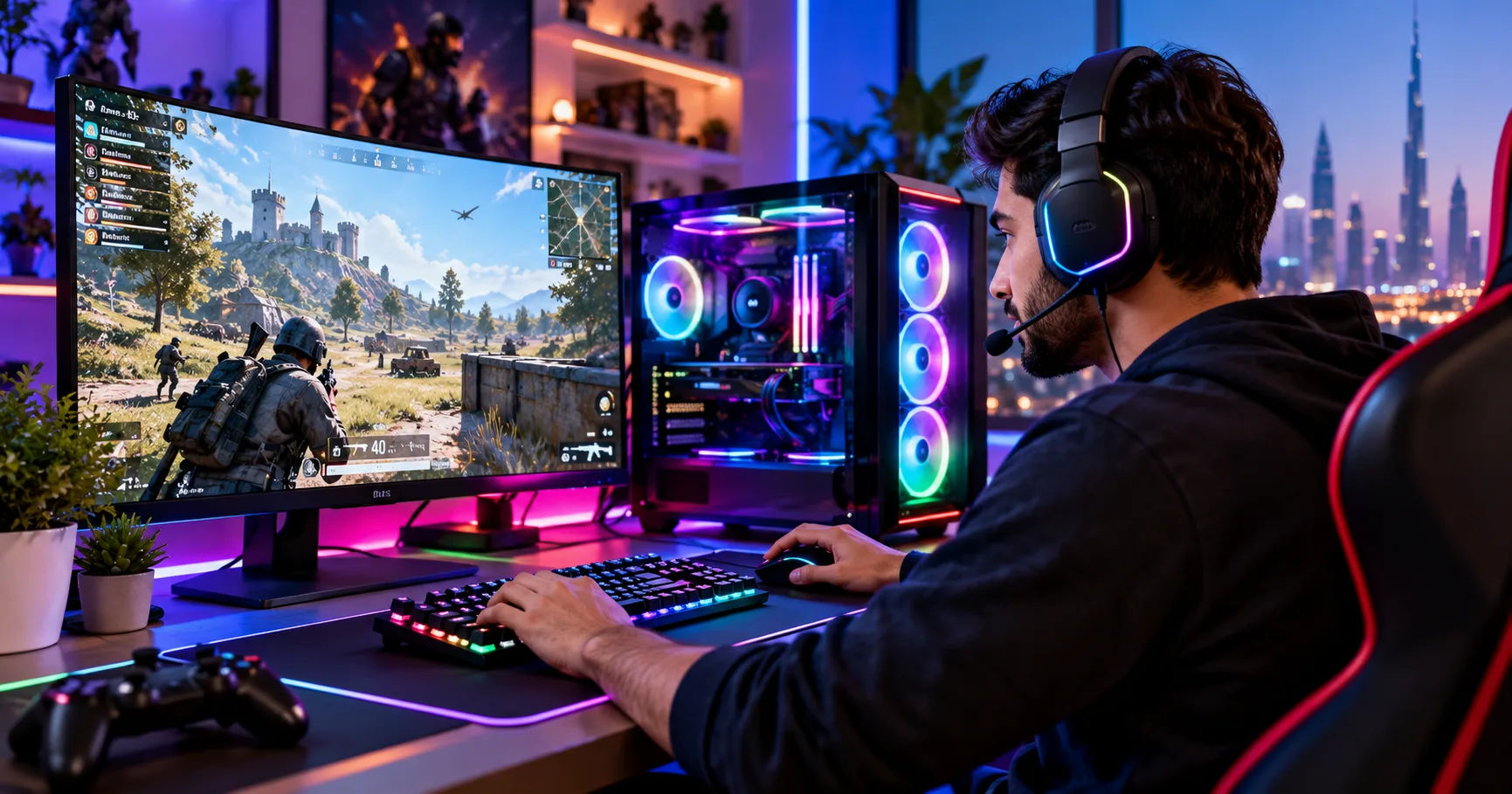
A cheap gaming pc can be particularly vulnerable to environmental problems when it has limited cooling, an inexpensive case, or components that are already operating near their temperature limits. However, humidity does not automatically mean that a computer will overheat or stop working. The real risk depends on the amount of moisture in the air, the surrounding temperature, airflow, and how well the system is maintained.
Understanding the relationship between humidity and computer performance can help gamers protect their equipment, avoid unnecessary repairs, and enjoy more consistent gameplay. Whether you play competitive shooters, racing games, open-world adventures, or online multiplayer titles, maintaining a suitable gaming environment is an important part of keeping your system reliable.
Humidity and Its Effects on Computers
Humidity describes the amount of water vapor present in the air. It is commonly measured as relative humidity, expressed as a percentage.
For example, 40% relative humidity generally indicates a more comfortable indoor environment than 85% relative humidity at the same temperature. However, relative humidity changes with temperature, so the percentage alone does not tell the whole story.
Computers contain sensitive electronic components that require suitable operating conditions. Although modern hardware can tolerate normal variations in indoor humidity, excessive moisture can create problems under certain circumstances.
What Is Relative Humidity?
Relative humidity measures how much water vapor the air contains compared with the maximum amount it could hold at a particular temperature.
Warm air can hold more water vapor than cold air. Therefore, relative humidity may increase when air cools, even if the amount of moisture remains unchanged.
This matters because a computer may move between different environments throughout the day. For example, a room might become warm during the afternoon and cool considerably at night.
If a computer or its components become colder than the surrounding air's dew point, moisture can condense on their surfaces. Condensation is particularly concerning because water on electronic circuits can cause electrical shorts, corrosion, and other damage.
Why Gaming Computers Need a Stable Environment
Gaming computers generate considerable heat when running demanding applications. The processor and graphics card are usually the main sources of this heat.
Cooling fans move air through the case to remove heat from these components. Dust filters, heatsinks, thermal paste, and case ventilation all contribute to temperature control.
Humidity is a separate environmental factor. High relative humidity does not necessarily make a processor hotter, nor does it automatically reduce frame rates.
Nevertheless, humidity can contribute to conditions that affect the computer's long-term reliability. Understanding these differences helps gamers identify real problems instead of blaming every performance issue on the weather.
Can High Humidity Reduce Gaming Performance?
High humidity can indirectly affect gaming performance, but its effects are not always immediate or noticeable.
The most important distinction is between performance problems and hardware damage. Performance problems include stuttering, sudden shutdowns, and reduced clock speeds. Hardware damage includes corrosion, electrical shorts, and failures caused by condensation.
Humidity and Processor Temperature
A processor produces heat while handling game calculations, background applications, and operating-system tasks.
The cooling system transfers this heat away from the processor and into the surrounding air. When the processor reaches its temperature limits, it may reduce its operating speed to protect itself. This behavior is known as thermal throttling.
However, ordinary high humidity is not usually the main cause of processor overheating. In most indoor environments, restricted airflow, dust buildup, inadequate cooling, and high room temperatures are more important factors.
A cheap gaming pc with a basic CPU cooler and a poorly ventilated case may struggle during demanding games, particularly in a hot room.
If humidity rises alongside room temperature, the combined environmental conditions may make an existing cooling problem more noticeable.
Effects on Graphics Card Performance
Graphics cards generate substantial heat when rendering detailed environments, shadows, lighting, and visual effects.
When temperatures become excessive, a graphics card may reduce its clock speed to remain within safe operating limits. This can lower frame rates or produce inconsistent performance.
Humidity itself does not normally cause this behavior directly. Instead, high ambient temperatures, blocked ventilation, and inadequate cooling are more common explanations.
Moisture presents a different concern. If condensation forms on the graphics card or its electrical connections, it can damage the hardware.
For this reason, keeping the computer in a stable, dry environment is more useful than assuming that every humid day will reduce gaming performance.
Can Humidity Cause Game Stuttering?
Game stuttering can occur for many reasons, including insufficient RAM, storage problems, background applications, overheating, outdated drivers, and network interruptions.
Humidity is not a typical direct cause of stuttering.
However, if moisture damages a component or creates an intermittent electrical connection, the computer may become unstable. Symptoms could include crashes, unexpected restarts, or failure to start.
Before replacing components, check CPU and GPU temperatures, available memory, storage health, and system logs. These checks can help identify whether the issue is related to cooling, software, or a possible hardware fault.
How High Humidity Can Damage Computer Components
Although high humidity does not always affect immediate performance, prolonged exposure can increase certain hardware risks.
The extent of the damage depends on moisture levels, temperature changes, contamination, exposure duration, and the materials used in the computer.
Corrosion on the Motherboard
The motherboard connects the processor, memory, storage devices, and other components.
It contains electrical contacts, solder joints, conductive traces, and numerous small electronic components. Moisture combined with contaminants can encourage corrosion on exposed metal surfaces.
Corrosion may interfere with electrical connections and eventually cause intermittent faults or permanent damage.
The risk is generally higher when moisture remains on the board for extended periods or when the environment contains dust, smoke, or other contaminants.
Keeping the room reasonably dry and preventing condensation can reduce these risks.
Damage to RAM and Graphics Card Contacts
RAM modules and graphics cards connect to the motherboard through electrical contacts.
These connections are designed to operate reliably under normal environmental conditions. However, moisture and corrosion can interfere with electrical contact over time.
Possible symptoms include memory errors, failure to boot, graphics problems, and unexpected system crashes.
These symptoms can also have other causes, so they should not automatically be attributed to humidity.
If a computer has experienced condensation or visible moisture, switch it off, disconnect the power, and arrange appropriate inspection before using it again.
Power Supply Risks
The power supply converts electricity from the wall outlet into the voltages required by computer components.
It contains capacitors, circuit boards, connectors, and other electrical parts. Moisture contamination can increase the risk of corrosion and electrical faults.
A damaged power supply can cause shutdowns, instability, or failure to start.
Never open a power supply to inspect or clean it yourself. Internal components can retain dangerous electrical charges even after the unit has been unplugged.
If you suspect moisture has entered the power supply, have the unit assessed by a qualified technician.
Storage Devices and Other Components
Modern solid-state drives have no moving mechanical parts, but their circuit boards and connectors can still be affected by moisture damage.
Traditional hard drives contain mechanical components inside a sealed enclosure. Normal room humidity does not mean moisture will enter that enclosure, but extreme environmental conditions and condensation can create broader reliability concerns.
Fans, cables, ports, and exposed connectors can also suffer from corrosion or contamination.
The most effective approach is to prevent moisture exposure rather than wait for symptoms to appear.
What Humidity Level Is Best for a Gaming PC?
Most gaming computers operate comfortably in ordinary indoor environments, provided the manufacturer's temperature and humidity specifications are followed.
For many homes, a relative humidity level of approximately 40% to 60% is a practical target. However, this is a general indoor-comfort guideline rather than a universal operating specification for every computer.
Some manufacturers specify wider acceptable humidity ranges. Always check the documentation for your particular system and components.
Low Humidity: Is It Harmful?
Very low humidity generally presents less condensation risk, but extremely dry air can increase the likelihood of electrostatic discharge.
Electrostatic discharge occurs when accumulated static electricity suddenly transfers between objects. A sufficiently strong discharge can damage sensitive electronic components.
Static electricity is more likely to become a concern in dry environments, especially when handling internal computer parts.
To reduce the risk, avoid unnecessary contact with exposed circuitry, use appropriate antistatic precautions, and follow the manufacturer's instructions when upgrading hardware.
Moderate Humidity: A Practical Balance
Moderate indoor humidity offers a reasonable balance between moisture control and static management.
Keeping humidity around 40% to 60% can be a useful starting point for many households, but the appropriate level depends on local climate, room temperature, and the manufacturer's recommendations.
A basic digital hygrometer can help you monitor indoor humidity. Place it near the computer, away from direct sunlight, air-conditioning outlets, and other sources of misleading temperature readings.
Monitoring actual conditions is more useful than guessing based on how humid the weather feels.
Very High Humidity: When to Be Careful
When relative humidity remains above approximately 70% or 80%, moisture management becomes increasingly important, especially in rooms with poor ventilation or large temperature changes.
These percentages do not automatically mean that a computer is unsafe. The actual risk depends on the equipment's specifications and whether condensation occurs.
Nevertheless, persistent dampness, water droplets, musty smells, or visible corrosion should not be ignored.
If your room regularly experiences very high humidity, consider improving ventilation or using a dehumidifier to maintain more stable indoor conditions.
Does Humidity Affect Cheap Gaming PC Cooling?
Cooling is one of the most important considerations for budget gaming systems.
Lower-cost computers often use basic cases, entry-level coolers, and a limited number of fans. These components can provide perfectly acceptable performance, but their cooling capacity may leave less room for additional heat.
Case Airflow Matters More Than Humidity Alone
A computer case needs a clear path for cool air to enter and warm air to leave.
Front intake fans commonly draw air into the case, while rear or top exhaust fans remove heated air. The exact arrangement depends on the case design.
If the intake vents are blocked or the fans are covered in dust, temperatures may rise significantly.
A budget computer with good airflow can often maintain better temperatures than a more expensive system with poor ventilation.
Therefore, when troubleshooting overheating, check airflow before purchasing new cooling hardware.
Dust and Moisture Can Create Additional Problems
Dust gradually accumulates on fan blades, heatsinks, filters, and other surfaces.
In damp environments, accumulated dust and contaminants can become more difficult to remove. Moisture may also contribute to residue buildup or corrosion under certain conditions.
This does not mean that dust automatically becomes conductive when exposed to humidity. Its electrical effects depend on its composition, contamination, and moisture exposure.
Regular cleaning is still important because dust can restrict airflow and interfere with cooling.
Always shut down and unplug the computer before performing routine external cleaning. Use suitable equipment and avoid spraying liquids directly onto electronic components.
Should You Add More Cooling Fans?
Additional fans may help if your case has inadequate airflow or if temperature monitoring confirms that your components are running too hot.
However, more fans are not always necessary. A well-designed airflow arrangement with two or three appropriately positioned fans may be sufficient for many budget systems.
Before spending money, check whether existing fans work properly, whether filters are clogged, and whether the case has enough ventilation.
If temperatures remain high after basic maintenance, consider a better CPU cooler or a case with improved airflow.
How to Protect a Cheap Gaming PC in Humid Weather
Protecting your computer does not require expensive equipment. A few sensible habits can reduce the likelihood of moisture-related problems and help maintain consistent performance.
Keep the Computer Away From Damp Areas
Avoid placing your computer directly beside open windows during rainy weather, near leaking pipes, or in rooms where water regularly collects.
Basements, poorly ventilated storage rooms, and damp corners can expose equipment to unsuitable environmental conditions.
If possible, position the computer on a stable desk or stand rather than directly on a damp floor.
Keep it away from water containers, humidifiers, and other sources of moisture.
Use a Dehumidifier When Necessary
A dehumidifier removes excess moisture from indoor air.
It can be useful in homes where humidity remains high for long periods, particularly during rainy seasons or in poorly ventilated rooms.
Choose a device suitable for the size of the room and monitor the humidity level to avoid making the environment excessively dry.
A dehumidifier is not necessary for every household. If indoor humidity remains within the recommended range and there are no signs of dampness, ordinary ventilation may be sufficient.
Maintain Consistent Room Temperature
Sudden temperature changes can increase condensation risk.
For example, moving a cold computer into a warm, humid room may allow moisture to form on its surfaces.
If a computer has been stored in a cold environment, allow it to reach room temperature before powering it on. If condensation is suspected, do not switch it on until it has been inspected and is completely dry.
Stable room conditions help reduce the likelihood of moisture-related problems.
Monitor Temperatures and Humidity
Use software monitoring tools to check CPU and GPU temperatures during gaming.
Compare readings with the specifications and operating limits provided by the hardware manufacturers. Temperatures vary depending on the processor, graphics card, workload, and cooling design.
A separate hygrometer can help you understand the room's humidity level.
Monitoring both measurements allows you to distinguish between overheating and environmental moisture concerns.
If temperatures are normal but the computer crashes, investigate other causes rather than assuming humidity is responsible.
Clean the Computer Regularly
Dust maintenance helps preserve airflow and cooling efficiency.
Inspect the case filters, fans, and ventilation openings periodically. The appropriate cleaning schedule depends on how dusty the room is and how frequently the computer operates.
Use compressed air or other equipment suitable for electronics, following the manufacturer's guidance. Hold fan blades still while cleaning to prevent them from spinning excessively.
Never clean an operating computer with liquids or use a household vacuum directly on sensitive internal components without understanding the electrostatic risks.
If you discover corrosion or moisture inside the case, professional inspection is safer than aggressive home cleaning.
Common Myths About Humidity and Gaming Computers
Several misconceptions can lead gamers to spend money unnecessarily or overlook genuine risks.
Myth 1: High Humidity Always Causes Overheating
This is incorrect.
Humidity and temperature are different environmental measurements. High humidity does not automatically make a CPU or GPU overheat.
Overheating is more commonly associated with inadequate cooling, high ambient temperatures, dust buildup, or heavy workloads.
Humidity becomes particularly concerning when it contributes to condensation or long-term moisture exposure.
Myth 2: Budget Gaming Computers Cannot Handle Humid Weather
A budget computer is not automatically more sensitive to humidity than an expensive one.
Both systems can operate reliably in suitable environments. Their actual resilience depends on component quality, design, manufacturing, exposure conditions, and maintenance.
However, an inexpensive system with poor ventilation may have less cooling capacity than a well-designed alternative.
This is a cooling limitation rather than proof that budget hardware cannot tolerate ordinary humidity.
Myth 3: Turning Up the Fans Solves Every Humidity Problem
Increasing fan speed can improve cooling in some situations, but it does not remove moisture from the air.
If condensation or corrosion is the problem, faster fans will not repair the damage.
Identify the cause before changing settings. Use fan adjustments to address confirmed thermal problems, and use humidity management to address excessive indoor moisture.
Myth 4: A Computer Is Safe as Long as It Turns On
A computer may continue working even when early corrosion or moisture contamination is present.
Some problems develop gradually and only become noticeable after repeated exposure.
Unexpected crashes, damaged connectors, unusual electrical behavior, or visible corrosion deserve attention.
Preventive maintenance is more effective than waiting for a complete hardware failure.
What to Do If Your Gaming PC Gets Wet
Water exposure requires more caution than ordinary high humidity.
If liquid spills onto the computer or you notice condensation inside the case, follow these precautions.
First, disconnect power safely. If it is safe to do so, switch off the computer and disconnect it from the electrical outlet. Never touch electrical equipment while standing in water or when doing so would put you at risk.
Second, do not restart the computer to test it. Applying power while moisture remains can cause short circuits and further damage.
Third, avoid using a hair dryer or direct heat. Excessive heat can damage components, while airflow may push moisture and contaminants into areas that are difficult to inspect.
Fourth, arrange a professional inspection if moisture reached internal components. A technician can assess the motherboard, power supply, graphics card, and other affected parts.
Finally, do not assume that the computer is safe simply because its exterior appears dry. Moisture may remain under connectors or inside components.
These precautions are particularly important when protecting a system that would be expensive to repair or replace.
Conclusion
Humidity can affect a gaming computer, but the relationship is more complicated than simply saying that humid weather reduces performance. In most cases, ordinary indoor humidity does not directly lower frame rates or cause a processor to overheat. Cooling efficiency, room temperature, airflow, and the condition of the hardware usually have a greater immediate influence on gaming performance.
The primary concern is prolonged exposure to excessive moisture and the possibility of condensation. These conditions can contribute to corrosion, electrical faults, and component damage. A stable indoor environment, sensible humidity control, and regular maintenance can significantly reduce these risks.
For anyone using a cheap gaming pc, the best approach is to focus on practical prevention rather than expensive upgrades that may not solve the actual problem. Keep the case ventilated, clean dust filters regularly, monitor processor and graphics card temperatures, and use a hygrometer if indoor humidity is consistently high.
A relative humidity level around 40% to 60% is a reasonable general target for many homes, although the manufacturer's specifications should always take priority. If your room frequently becomes damp, improving ventilation or using a dehumidifier may help protect your equipment.
Remember that high humidity alone does not mean your computer is in danger. The more serious warning signs are condensation, visible moisture, corrosion, and persistent environmental dampness. Address these conditions promptly, and seek professional assistance if water reaches internal components.
With appropriate care, a budget gaming computer can provide dependable performance for years. You do not need premium hardware to maintain a healthy gaming setup. You need a suitable environment, effective cooling, and a consistent maintenance routine that protects your investment.